

How to transfer Vimeo videos to Google Drive
A full walkthrough for moving your Vimeo library to Google Drive — whether it's 10 videos or 10 terabytes. This guide covers the prerequisites, the transfer flow, how to handle rate limits, and what to do when things go wrong.
Before you start
You need:
- A Vimeo plan that allows API downloads — check which plans qualify.
- A Vimeo personal access token with the
privateandvideo_filesscopes. If you don't have one yet, follow the token guide. - A Google account with enough free space in Drive (or Google Workspace) to fit your Vimeo library.
Step 1 — Connect Google Drive
Open this2that's Vimeo to Google Drive tool and click "Get Started with Google". Sign in with the Google account where you want the videos to land. We only request permission to create files in folders our app creates — we can't see or touch the rest of your Drive.
Step 2 — Paste your Vimeo token
In the dashboard, paste your Vimeo personal access token in the connection bar. It's encrypted and stored on your account so you don't need to paste it again on future visits. Once connected, you'll see your Vimeo library load: video count, total size, folders if you use them.
Step 3 — How the transfer runs
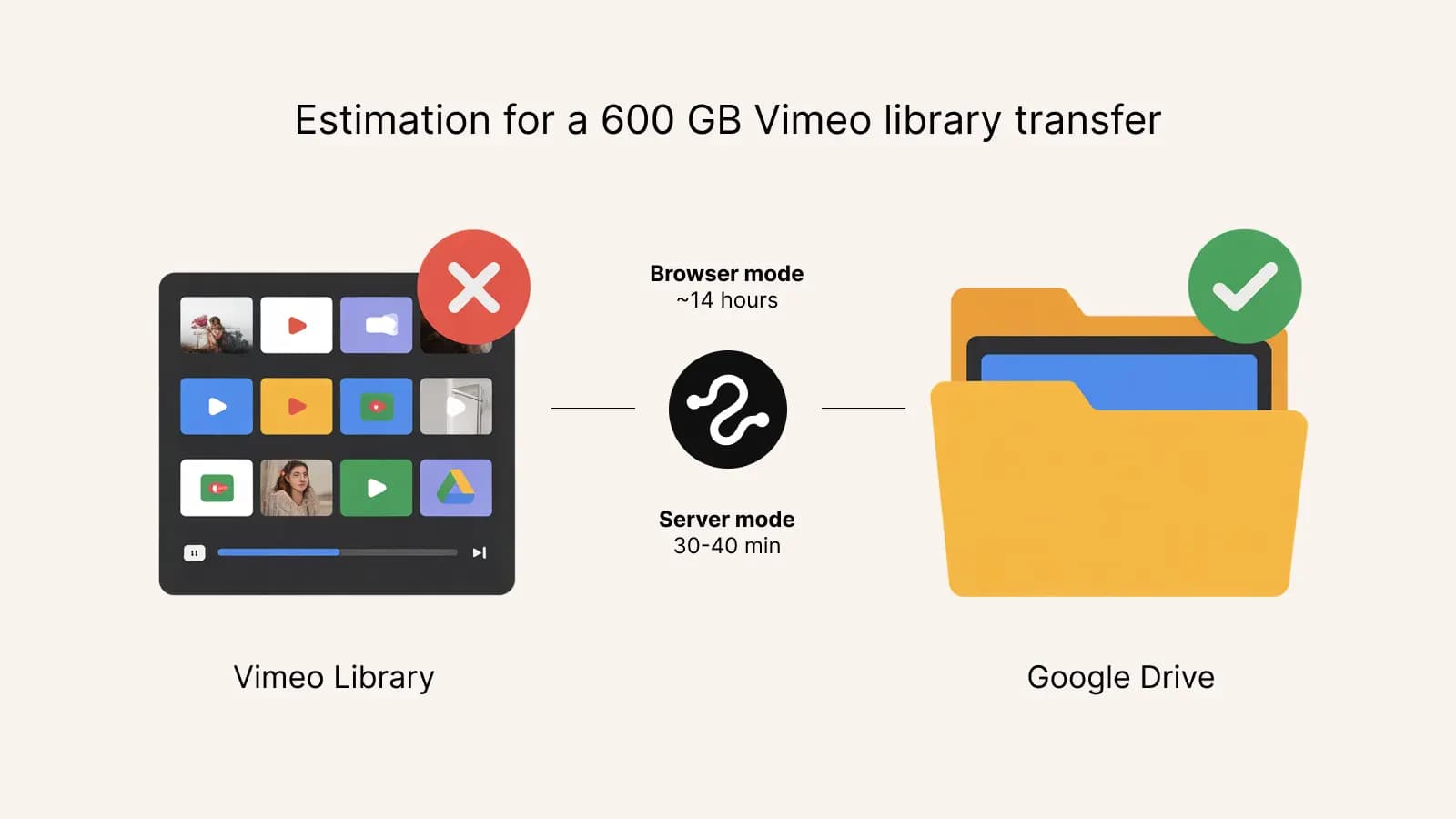
Our servers stream videos directly from Vimeo's CDN to Google Drive at data-center speeds. A 600 GB library moves in 30 to 40 minutes. You can close your browser and come back later. A paid server pack is required; the first 10 files (up to 3 GB) are free to try.
Try it now
Want to see it in action?
The first 10 files are free. No credit card, no account signup beyond Google OAuth.
Open the tool→Step 4 — Pick a destination folder
On the right side of the dashboard, choose or create a Google Drive folder. By default, the tool creates a folder called "Vimeo Exports" and uses it. You can also create sub-folders for organizing different batches — for example, one folder per year or per project.
Step 5 — Select videos and start
Select the videos you want to transfer. You can filter by Vimeo folder, by video title, by quality, or pick all of them. Click the "Export" button at the bottom of the screen. Transfers start immediately and progress shows in the floating transfer widget.
What to expect
- Speed: transfers run at multi-gigabit speed on our backend, independent of your home connection.
- Rate limits: Vimeo caps API calls per minute. For very large libraries, the server batches requests to stay under the limit.
- Failures:If a single transfer fails, it doesn't count against your capacity and you can retry it. Failed transfers are shown with a retry button in the widget.
- Quality: You can pick source, HD, or SD before starting. Source is the original upload resolution; HD caps at 1080p; SD at 540p.
Common pitfalls
- Free Vimeo plans don't work.The API simply doesn't return download links. Upgrade to Vimeo Starter for one month if needed.
- Wrong token scopes. Your token must have
privateandvideo_files. Missing scopes cause validation errors. - Drive storage full. Check your Google Drive quota before starting a multi-terabyte migration.